Best Tablets for Kids: Learning and Play by Age Group
Find the best tablet for your child by age. Compare iPad, Fire, and Android tablets with parental controls, cases, and educational app recommendations.

The tablet question comes up at every playdate, every homeschool meetup, every family gathering. "Which tablet did you get your kids?" "Is the Fire tablet worth it or should I just get an iPad?" "What about those LeapFrog ones?" I've now been through three different tablets across three kids at various ages, and I have some strong opinions. The short version: there's no single best tablet for every kid. The right one depends on your child's age, what you want them to use it for, and how much you want to spend. Here's my honest breakdown.
Ages 2-5: Keep It Simple and Durable
For the littlest ones, you need two things above all else: durability and strong parental controls. The content matters less because at this age, a few good apps go a long way. What matters is that the tablet can survive being dropped, sat on, chewed on, and possibly thrown.
My recommendation: Amazon Fire HD 8 Kids
This is what we started with and I'd do it again. The Kids version comes with a chunky protective case, a two-year worry-free warranty (they'll replace it if your child breaks it, and they will), and one year of Amazon Kids+, which gives you access to thousands of books, apps, games, and videos that are curated for the age range.
The parental controls are solid. You can set daily time limits, bedtime curfews, educational goals (they have to do 30 minutes of reading before games unlock), and filter content by age. The Parent Dashboard lets you see exactly what they're doing on it.
Is the screen as beautiful as an iPad? No. Is the app selection as broad? No. Does it matter for a three-year-old? Not even a little.
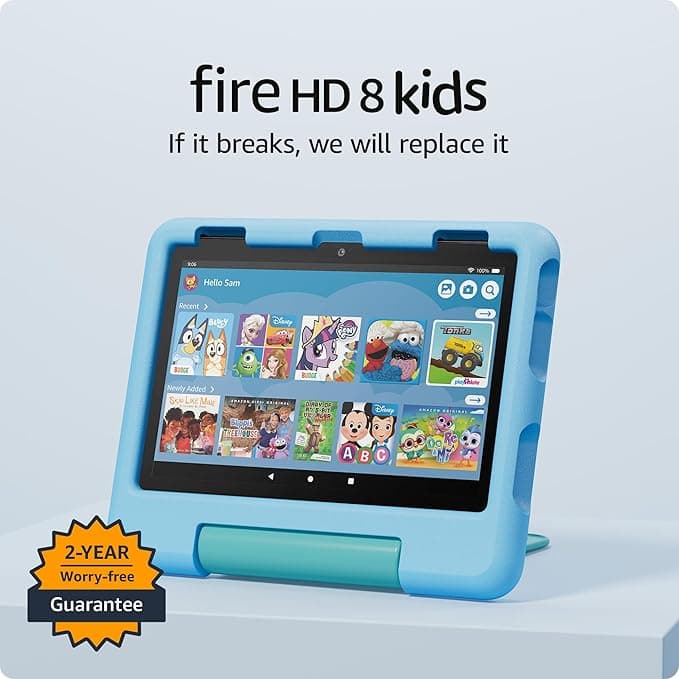
Built for little hands with a kid-proof case, 2-year worry-free warranty, and Amazon Kids+ included. The best value tablet for young children with excellent parental controls.
Ages 6-9: The Sweet Spot
This is the age where kids start wanting more from their tablet. They're ready for real educational apps, they want to watch specific shows, and some of them are starting to create, drawing, making simple videos, writing stories. The Fire tablet still works fine here, but an iPad starts to make more sense depending on your family.
Option A: Amazon Fire HD 10 Kids Pro
The "Pro" version is Amazon's answer for the older-kid crowd. It comes with a slimmer case (because your eight-year-old does not want the chunky toddler case), access to a broader range of apps and content, a web browser with built-in filters, and the same parental controls. It's a good choice if you want to keep costs manageable and your kids mostly use it for reading, educational apps, and streaming.
Option B: iPad (base model)
If your child is using the tablet for homeschooling, creative work, or you want a device that will grow with them through middle school, the base iPad is hard to beat. The app ecosystem is just bigger and better. Apps like Procreate (for drawing), GarageBand (for music), iMovie (for video projects), and all the major educational platforms run beautifully on it. Plus, you can add an Apple Pencil for writing and drawing.
The downside is price, even the base iPad costs more than a Fire tablet, and the Apple Pencil and case are sold separately. But in terms of longevity and capability, it's the better investment if your budget allows.
Parental controls on iPad: Use Screen Time in Settings. You can set app limits, downtime schedules, content restrictions, and require approval for app downloads. It's not quite as intuitive as Amazon's parent dashboard, but it covers all the same ground.
Ages 10-13: Think Long-Term
By this age, your kid is probably using a tablet for actual schoolwork, typing essays, researching projects, watching educational videos, maybe even some light coding. The tablet needs to be a real tool, not just a content consumption device.
My recommendation: iPad (9th or 10th generation)
At this age, I'd go iPad without hesitation. The app selection, processing power, and multitasking capabilities are leagues ahead of Fire tablets. If your child is homeschooling, an iPad running apps like Notability, Khan Academy, Google Docs, and various STEM apps becomes a legitimate learning workstation.
Add a keyboard case and it's practically a laptop. My oldest uses hers for everything from writing assignments to art projects to video calls with her co-op class.
The Chromebook alternative: If typing is the primary need and your budget is tight, a Chromebook is honestly a better choice than a tablet for this age group. They're cheaper than iPads, have a real keyboard built in, and run all the web-based tools your kid will need. We have both, and for pure productivity the Chromebook gets more use.
Cases: Don't Skip This
Whatever tablet you buy, get a case before you hand it to your child. Not after. Not "we'll get one this weekend." Before.
For Fire tablets, the included Kids case is solid. For iPads, I recommend getting something with a handle or a stand built in for younger kids, and something with a keyboard for older kids.
A tempered glass screen protector is also non-negotiable. They cost a few dollars and save you from a cracked screen that costs significantly more.
Parental Controls: The Non-Negotiable Setup
No tablet should be handed to a child without parental controls configured. Period. Here's what to set up on day one, regardless of which device you choose:
Time limits. Set a daily maximum. We do one hour on school days, two hours on weekends. The tablet locks when time is up, no negotiating with mom, it's the machine's rule.
Content filters. Restrict apps, websites, and media by age rating. Both Amazon and Apple make this straightforward.
App approval. Require your permission before any new app can be downloaded. This prevents surprise in-app purchases and keeps out apps that aren't age-appropriate.
Bedtime lockout. The tablet should not work after bedtime. Set a schedule and let the device enforce it for you.
Location sharing. For older kids who take the tablet outside the house, enable Find My (Apple) or device location tracking so you can locate it if it goes missing.
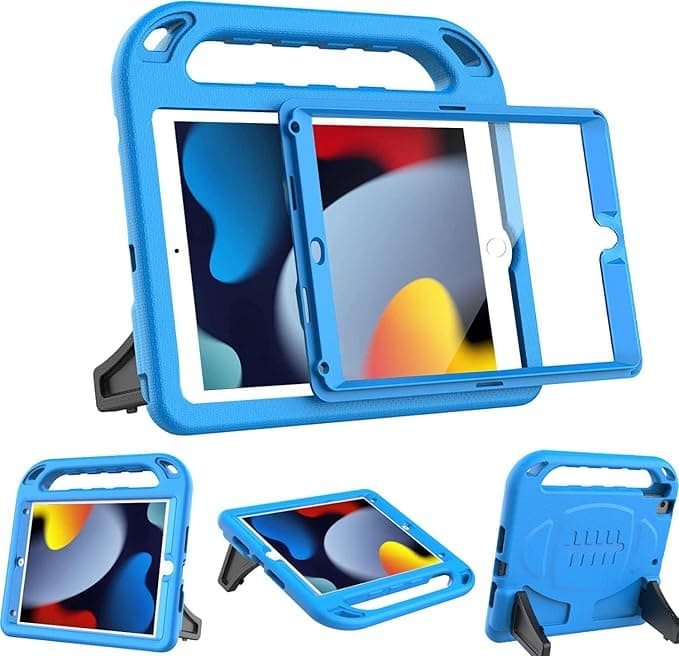
iPad Kids Case with Handle and Stand
Lightweight, shockproof, and has a rotating handle that doubles as a stand. Fits the base model iPad perfectly. Comes in fun colors the kids actually like.
Best Educational Apps to Install First
Whatever tablet you choose, load it up with these before handing it over:
- Khan Academy Kids (ages 2-8), free, excellent, covers everything
- Duolingo, language learning that feels like a game
- Epic!, digital library with thousands of kids' books
- Prodigy Math, math practice disguised as an adventure game
- Toca Boca apps, creative, open-ended play for younger kids
- Scratch Jr. (ages 5-7) or Scratch (ages 8+), introduction to coding
Quick Comparison Chart
| Feature | Fire HD 8 Kids | Fire HD 10 Kids Pro | iPad (base) |
|---|---|---|---|
| Best for ages | 2-7 | 6-12 | 6-13+ |
| Starting price | ~$150 | ~$190 | ~$329 |
| Parental controls | Excellent | Excellent | Good |
| App selection | Good | Good | Best |
| Durability | Great (with case) | Great (with case) | Needs a case |
| Warranty | 2-year replacement | 2-year replacement | 1-year limited |
| Stylus support | No | No | Apple Pencil |
The Bottom Line
For young kids (under 6): Fire HD 8 Kids. It's affordable, durable, and the parental controls are the best in the business. You won't cry if it gets juice on it.
For school-age kids (6-9): Fire HD 10 Kids Pro if budget is a priority, iPad if you want the device to grow with them.
For older kids (10+): iPad or a Chromebook, depending on whether they need portability or productivity.
Whatever you choose, the parental controls matter more than the hardware. Set them up, stick to your screen time boundaries, and fill the device with more educational content than entertainment. The tablet isn't the babysitter, it's a tool, and like any tool, it works best when you're intentional about how it's used.